Archived. This walks through an early Infragate console flow for a custom GitLab server. We do not recommend that setup anymore. The page stays up so old links still resolve.
As a developer constantly switching between my IDE and GitLab’s web interface to check merge request comments, I found myself losing focus and breaking my flow. The existing GitLab MCP server was helpful for listing projects and merge requests, but it was missing a crucial feature: the ability to list merge request comments.
The Problem
The default GitLab MCP server tools were:
list_projects- Get all visible projectslist_merge_requests- Get all merge requests for a project
But what I really needed was:
get_merge_request_comments- View all comments on a specific merge request without leaving my IDE
This gap meant I was still context-switching to GitLab’s web UI every time I needed to review feedback, leading to:
- Lost development momentum
- Increased time spent on code reviews
- More opportunities for human error when tracking which comments I’d addressed
The Solution: Infragate
Instead of spending hours building a custom MCP server from scratch or forking and maintaining the existing GitLab MCP implementation, I turned to Infragate. The process was remarkably simple:
Step 1: Create the Server
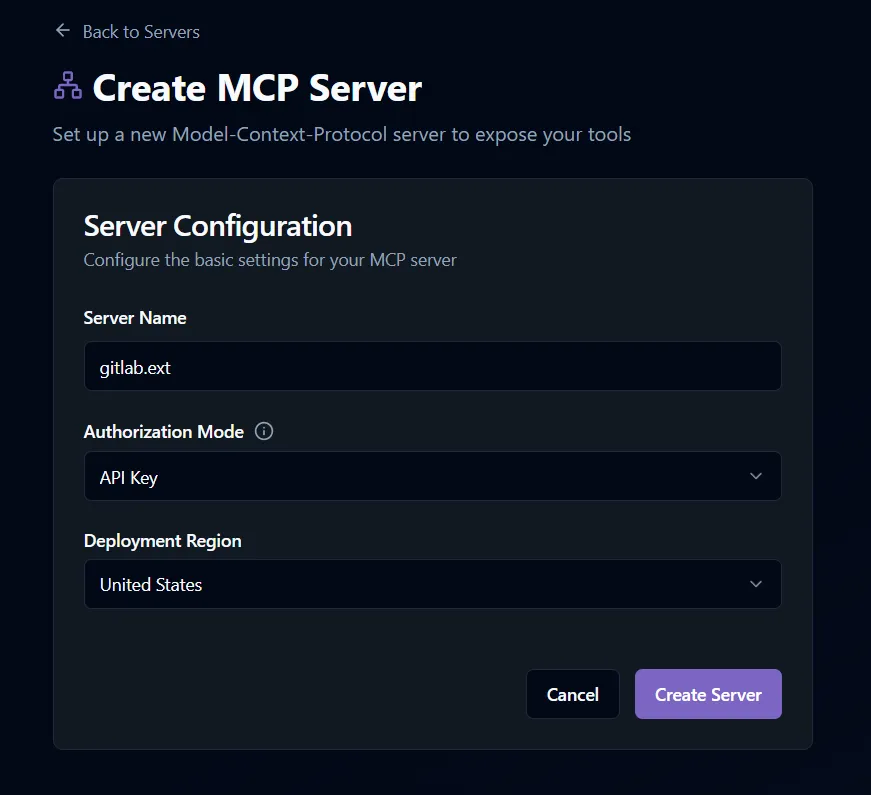
The first step is to create your MCP server in Infragate. Create a server named gitlab.ext in your region of choice with API Key authentication enabled.
Step 2: Create the Data Source
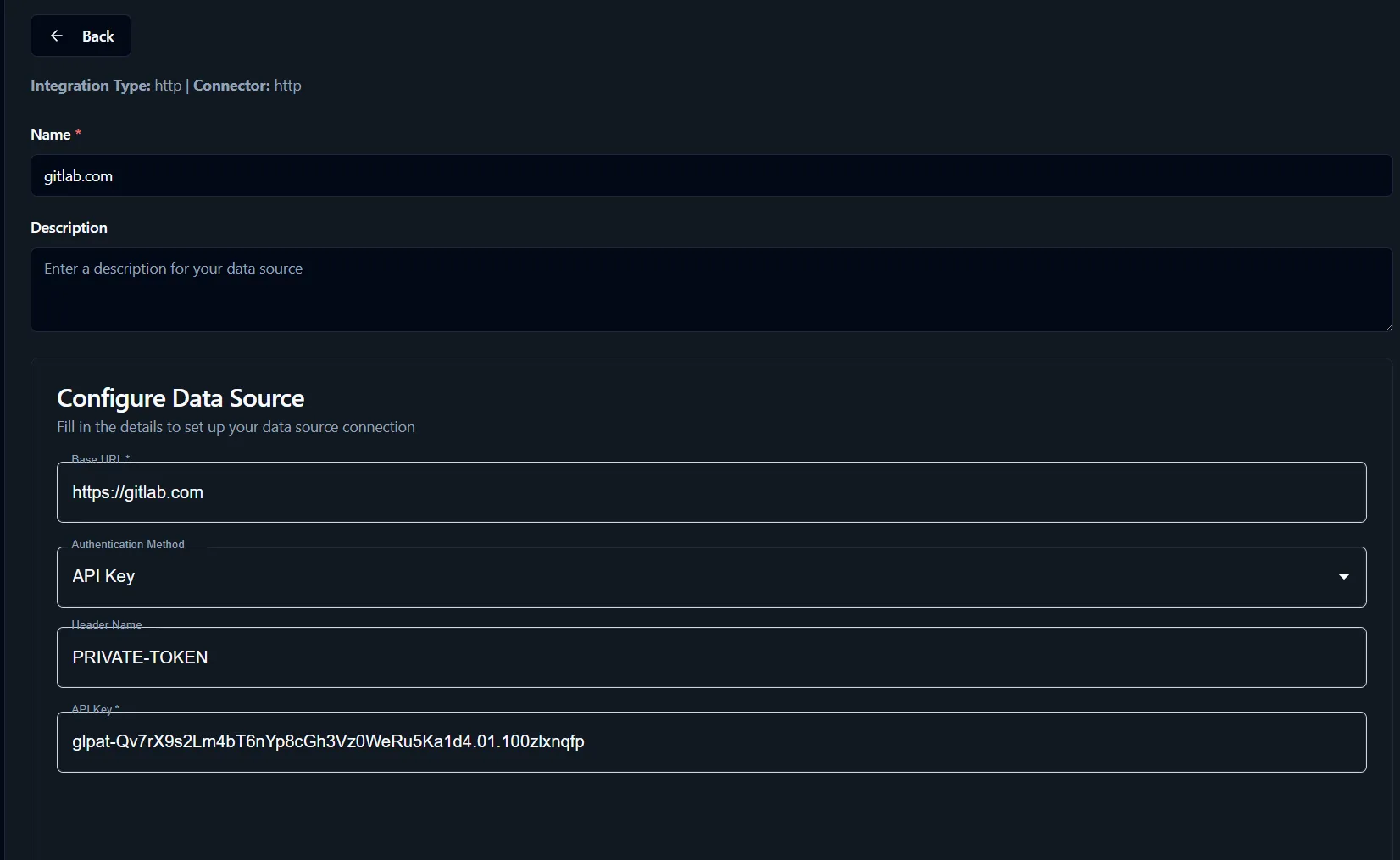
To connect your server to GitLab, you’ll need to create a data source:
- Obtain a valid GitLab access token from your GitLab account settings
- Configure a data source with the base URL:
https://gitlab.com - Set the authentication method to API Key
- Use
PRIVATE-TOKENas the header name - Paste your GitLab access token as the API Key value
Step 3: Define Tools
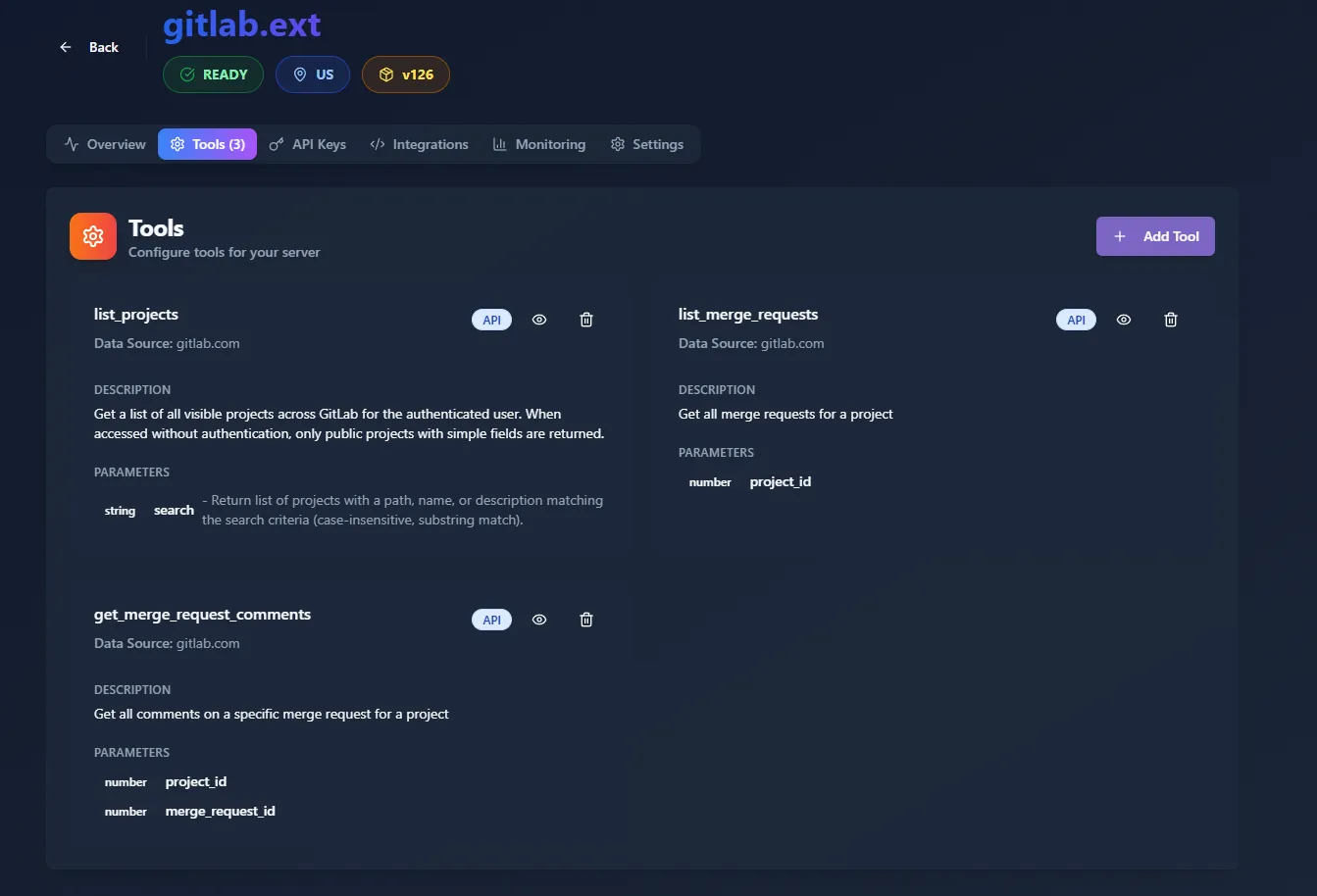
Now for the fun part - defining the three tools that will power your custom MCP server. Each tool maps to a GitLab API endpoint and transforms the data into a format your AI assistant can work with.
Tool 1: list_projects
This tool retrieves all visible GitLab projects for the authenticated user.
| Field | Value |
|---|---|
| Description | Get a list of all visible projects across GitLab for the authenticated user. |
| Parameters | search (string, optional): search filter |
| Endpoint | GET /api/v4/projects |
| Query Parameters | { "owned": "true", "search": ":search" } |
| Transform | [].{"id": id, "name": name} |
Tool 2: list_merge_requests
Returns all merge requests for a specific project.
| Field | Value |
|---|---|
| Description | Get all merge requests for a project |
| Parameters | project_id (number) |
| Endpoint | GET /api/v4/projects/:project_id/merge_requests |
| Query Parameters | { "state": "opened" } |
| Transform | [].{"id": iid, "title": title, "description": description, "created_at": created_at, "updated_at": updated_at, "author": author.name} |
Tool 3: get_merge_request_comments
The missing piece - this retrieves all comments on a specific merge request.
| Field | Value |
|---|---|
| Description | Get all comments on a specific merge request for a project |
| Parameters | project_id (number), merge_request_id (number) |
| Endpoint | GET /api/v4/projects/:project_id/merge_requests/:merge_request_id/notes |
| Transform | [].{"comment": body, "author": author.name, "commentedOn": { "fromLine": [...], "toLine": [...], "file": [...] }} |
Note: When defining these tools we used the “Transform Output” option, which supports JMESPath expressions. This lets us reshape the original API responses to keep only the relevant fields the assistant needs.
Step 4: Connect with Cursor
Once your tools are configured, switch to the integrations tab and click “Add to Cursor”. Infragate will automatically configure your Cursor IDE to use the MCP server with the proper API key.
The Result
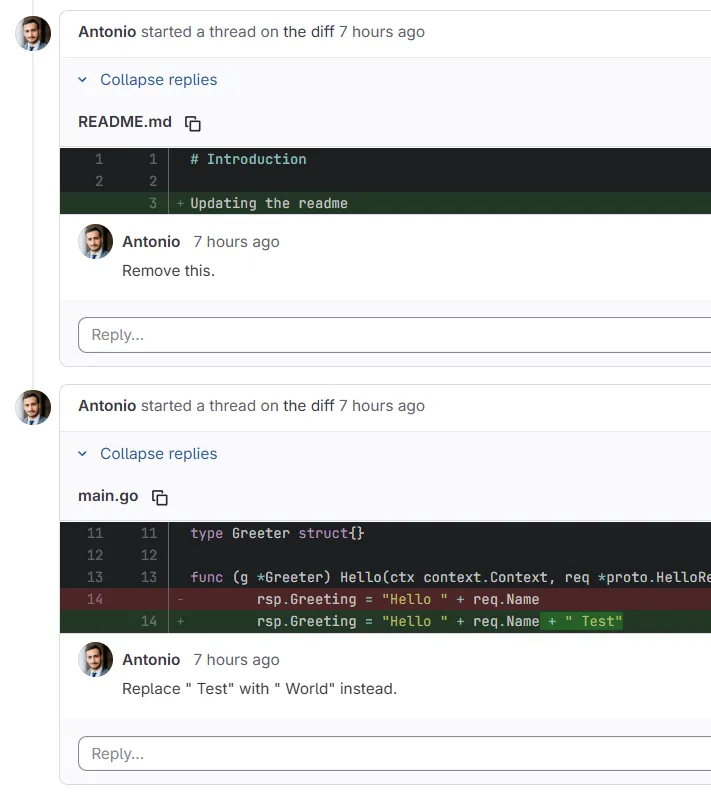
Now comes the magic. With everything connected, I can run a single prompt in Cursor:
“Using the gitlab tool, show me which comments need fixing on my latest MR on the project named ‘example’ and fix the open issues.”
This triggers a fully automated agentic workflow that:
- Finds the project - Queries GitLab to locate the specified project
- Identifies the merge request - Retrieves the latest MR with its details
- Fetches all comments - Pulls in every comment, including line-specific feedback
- Analyzes the issues - Understands what needs to be fixed based on reviewer comments
- Applies the fixes - Makes the necessary code changes directly in my IDE

Productivity Gains
This simple workflow has transformed how I handle code reviews:
- No more context switching - Everything happens in one place
- Faster review resolution - From minutes to seconds
- Zero missed comments - The AI systematically addresses every issue
- Reduced mental overhead - I can stay in flow and code
Why Infragate Made the Difference
What could have been a multi-day engineering project:
- Setting up MCP server infrastructure from scratch
- Implementing secure authentication handling
- Writing robust API integration code
- Deploying and maintaining the service long-term
- Handling rate limiting, error cases, and edge scenarios
…became a 15-minute setup with Infragate. The platform handled all the infrastructure complexity while giving me exactly what I needed: a focused solution to a real productivity problem.
Conclusion
If you’re stuck with gaps in your MCP server tooling or spending too much time context-switching between your IDE and external tools, I highly recommend giving Infragate a try. Sometimes the best solutions are the ones that let you focus on solving problems rather than building infrastructure.
The missing get_merge_request_comments functionality was just one example. What MCP server gaps are you facing in your workflow?